AI cannot fully replace SolidWorks engineers yet. But it can help mechanical engineers build SolidWorks automation workflows much faster.
Instead of expecting AI to create perfect production-ready CAD models from a simple text prompt, the practical use case is different: use AI to help write macros, organize parameters, automate repetitive modeling tasks, generate documentation, and build simple CAD configurators.
For mechanical engineers, this is where AI becomes useful: not as a magic CAD designer, but as a productivity layer on top of SolidWorks.
SolidWorks already supports automation through macros and the SolidWorks API. According to SolidWorks API documentation, recording a macro is one of the quickest ways to start programming with the SolidWorks API, and the API can be used to automate and customize SolidWorks workflows. DriveWorksXpress is also included with every seat of SolidWorks and can automatically create order-specific versions of parts, assemblies, and drawings based on captured parameters and rules.
What Is SolidWorks Automation?
SolidWorks automation means using rules, parameters, macros, APIs, or configurators to reduce repetitive CAD work.
Instead of manually changing dimensions, rebuilding models, renaming files, creating drawing variants, or updating similar parts one by one, you create a repeatable workflow that can generate or modify models automatically.
Common SolidWorks automation examples include:
Generating different sizes of the same bracket
Updating global variables from a form
Creating design variants from predefined rules
Automatically saving models with new part numbers
Exporting drawings or STEP files
Creating simple product configurators
Automating repetitive modeling operations
Generating engineering documentation
The goal is not to remove the engineer. The goal is to remove repeated low-value operations so the engineer can focus on design logic, manufacturing constraints, and engineering decisions.
Can AI Automate SolidWorks Directly?
In most practical cases, AI does not directly control SolidWorks reliably by itself.
A text prompt like “create a sheet metal bracket with four holes” may sound simple, but real CAD work requires more than geometry. A production-ready SolidWorks model needs correct constraints, feature order, design intent, material thickness, bend rules, hole positions, file naming, drawing references, and rebuild stability.
This is where many people misunderstand AI in CAD.
AI is not yet a reliable replacement for a trained SolidWorks user. But AI can help the engineer build the automation system faster.
A realistic AI-assisted SolidWorks workflow looks like this:
The engineer defines the design logic.
The engineer creates or prepares a master model.
AI helps write macro code or automation scripts.
The macro updates dimensions, global variables, or features.
SolidWorks rebuilds and saves the model.
The engineer checks the result and improves the rules.
That is the useful version of AI for SolidWorks automation.
Best Ways to Use AI for SolidWorks Automation
- Use AI to Write SolidWorks VBA Macros
One of the most practical ways to use AI with SolidWorks is macro generation.
SolidWorks macros can automate tasks such as opening a part, changing dimensions, updating global variables, rebuilding the model, and saving a new file. SolidWorks officially supports macro recording and API-based automation, which makes macros a good starting point for engineers who want to automate repetitive tasks.
AI can help you write the first version of a macro, especially when you already know what you want the macro to do.
For example, you can ask AI to help create a macro that:
Opens a SolidWorks part
Reads user input values
Updates global variables
Rebuilds the model
Saves the file to an output folder
Exports a STEP file
Shows a success or error message
This does not mean the AI-generated macro will always work perfectly. SolidWorks API code often needs debugging because model names, dimension names, feature names, and file paths vary from project to project.
But AI can dramatically reduce the time needed to create the first working version.
- Use AI to Organize Global Variables and Design Logic
Good SolidWorks automation starts with a clean model.
If the model is messy, no AI tool can save it. Before automation, the engineer must define which dimensions should be controlled and which relationships should be locked.
For example, in a simple L-bracket model, you may define variables such as:
Plate length
Plate width
Height
Thickness
Hole diameter
Hole offset
Bend radius
Material type
AI can help you organize these variables into a clearer structure. It can suggest naming conventions, check whether the logic is understandable, and help convert rough engineering notes into a rule table.
For example:
ParameterMeaningExampleLengthMain base length100 mmWidthBracket width50 mmThicknessSheet metal thickness3 mmHole_DiaMounting hole diameter8 mmHole_OffsetDistance from edge to hole center15 mm
This sounds basic, but it matters. Most failed CAD automation projects do not fail because the code is difficult. They fail because the design logic is unclear.
- Use AI to Build Simple CAD Configurators
A CAD configurator allows a user to input values through a form and generate a new CAD model automatically.
For example, a user may enter:
Length
Width
Thickness
Hole size
Hole position
Output file name
Then the tool updates the SolidWorks model and saves a new version.
AI can help create the basic logic, UI text, input validation, and macro structure. For small tools, this can be enough to build a practical internal automation workflow.
For larger engineering teams, tools like DriveWorksXpress or DriveWorks may be more appropriate. DriveWorksXpress is designed to capture manually updated parameters, create forms, build rules, and generate new versions of SolidWorks parts, assemblies, and drawings.
The key difference is this:
Use macros when you need a lightweight engineering automation tool.
Use DriveWorks when you need a more structured design automation or sales configurator workflow.
Use AI to help build and document either approach faster.
Example: AI-Assisted SolidWorks Bracket Generator
A simple example is a SolidWorks bracket generator.
The workflow could look like this:
Create a clean master bracket model in SolidWorks.
Define global variables for key dimensions.
Create a simple input form.
Use a macro to pass user input into SolidWorks.
Rebuild the model.
Save the generated model to an output folder.
This type of tool does not need to be extremely complex to be useful.
For an engineer who often creates similar brackets, plates, covers, frames, or mounting parts, even a simple generator can save time. More importantly, it reduces mistakes caused by manual dimension changes.
A bracket generator can also become a small proof of concept for a larger CAD automation workflow.
Once the basic logic works, the same approach can be extended to:
Mounting plates
Sheet metal covers
Sensor brackets
Simple frames
Hole pattern plates
Machine guards
Standardized fixture components
This is where AI becomes powerful: it helps the engineer move from one manual CAD task to a repeatable automation system.
What AI Is Good At in SolidWorks Automation
AI is useful for support tasks around automation.
It is especially helpful for:
Macro Drafting
AI can write a first version of VBA, VB.NET, C#, or Python-related helper code. The engineer still needs to test and debug the result, but it saves time compared with starting from a blank file.
Code Explanation
If you record a SolidWorks macro and do not fully understand the code, AI can explain what each section does. This is useful for engineers who are not professional programmers.
Error Debugging
AI can help analyze error messages, missing object references, incorrect dimension names, or path problems. It will not always be right, but it can help you find likely causes faster.
Parameter Planning
AI can help convert a messy design idea into a parameter table, naming convention, and rule structure.
Documentation
After the automation tool works, AI can help create:
User manuals
Step-by-step instructions
Product descriptions
Release notes
Troubleshooting guides
Short tutorial scripts
Video narration scripts
This is very important because a CAD automation tool without documentation is hard for other people to use.
What AI Is Not Good At
AI has clear limitations in SolidWorks automation.
AI Does Not Understand Your Model Like an Engineer
AI may generate code, but it does not truly know whether your feature tree is stable, whether your design intent is correct, or whether the generated model is manufacturable.
AI Cannot Guarantee Rebuild Stability
SolidWorks models can break when dimensions change too much. Features may fail, sketches may lose references, and drawings may not update correctly. AI cannot automatically guarantee model robustness.
AI Does Not Replace Design Judgment
AI can suggest logic, but it cannot decide whether a bracket is strong enough, whether a hole position is realistic, or whether a bend radius is suitable for manufacturing.
AI-Generated Code Needs Testing
Never trust AI-generated SolidWorks macro code without testing. Always run it on copies of files first. Use simple test cases before applying it to production models.
SolidWorks Macros vs DriveWorks vs AI
There are several ways to automate SolidWorks. The right choice depends on your goal.
MethodBest ForStrengthLimitationSolidWorks MacrosEngineers automating repeated tasksFlexible and lightweightRequires coding and testingSolidWorks APIAdvanced automation and custom toolsPowerful and customizableHigher technical complexityDriveWorksXpressRule-based design automationBuilt into SolidWorks and structuredLess flexible than custom codeDriveWorks Solo/ProProduct configurators and sales-to-engineering workflowsScalable and professionalHigher cost and setup effortAI ToolsCode support, documentation, logic planningSpeeds up developmentCannot replace engineering validation
For individual engineers and small teams, SolidWorks macros plus AI assistance are often the fastest way to validate an automation idea.
For companies that need repeatable product configuration across sales, engineering, and production, DriveWorks becomes more attractive.
Practical Workflow: How to Start
If you want to use AI for SolidWorks automation, do not start with a complex assembly.
Start with one simple part.
A good first project could be:
L-bracket generator
Mounting plate generator
Hole pattern generator
Simple sheet metal cover generator
Spacer or block generator
Then follow this workflow:
Step 1: Choose a Repetitive CAD Task
Pick something you have modeled many times before. If the part is always different but follows the same logic, it is a good automation candidate.
Step 2: Build a Clean Master Model
The master model is the foundation. Use clear sketches, stable references, and meaningful global variables.
Step 3: Define Parameters
Write down which dimensions should be controlled by the user.
Do not expose every dimension. Only expose the dimensions that actually need to change.
Step 4: Record a Simple Macro
Use SolidWorks macro recording to capture a basic operation. This gives you a starting point and shows how SolidWorks names objects and dimensions.
Step 5: Ask AI to Help Rewrite the Macro
Give AI clear instructions. For example:
“Rewrite this SolidWorks VBA macro so it updates these global variables, rebuilds the part, saves a copy to an Output folder, and shows an error message if SolidWorks is not running.”
Step 6: Test on Copies
Never test directly on your only master file. Use copied files and check whether all generated models rebuild correctly.
Step 7: Add a Simple User Interface
For a basic tool, even a small input window can be enough. The user enters dimensions, clicks a button, and SolidWorks generates the model.
Step 8: Document the Workflow
Create a short guide explaining:
What SolidWorks version is required
How to run the tool
Which dimensions can be changed
Where generated files are saved
What to do if an error occurs
AI can help write this documentation quickly.
Best Use Cases for AI-Assisted SolidWorks Automation
AI-assisted SolidWorks automation is most useful when the task is repetitive, rule-based, and parameter-driven.
Good use cases include:
Standard brackets
Mounting plates
Sheet metal parts
Simple frames
Machine guards
Fixture components
Configurable covers
Repeated hole patterns
Drawing export workflows
File naming and saving automation
STEP or PDF batch export
Poor use cases include:
Highly creative concept design
Complex one-off machines
Unstable imported geometry
Assemblies with unclear references
Parts with many exceptions
Designs that require frequent engineering judgment
The best automation targets are not the most complex models. They are the most repeated models.
How This Helps Mechanical Engineers
For mechanical engineers, AI-assisted SolidWorks automation can help in three ways.
First, it saves time on repetitive CAD work.
Second, it reduces manual errors caused by changing similar dimensions again and again.
Third, it helps engineers build reusable design systems instead of treating every model as a one-time task.
This is especially valuable in environments where engineers repeatedly create similar models for different customers, sizes, installation conditions, or order requirements.
In other words, the real value is not “AI makes a CAD model.”
The real value is:
AI helps engineers turn repeated design knowledge into reusable automation workflows.
Final Verdict
AI is not a magic button for SolidWorks. It will not reliably create production-ready CAD models from simple prompts.
But AI is very useful when combined with SolidWorks macros, global variables, DriveWorks, and clean parametric modeling.
The best way to use AI for SolidWorks automation in 2026 is to let the engineer define the design logic, then use AI to speed up coding, documentation, debugging, and workflow development.
For mechanical engineers, this is a practical and realistic path.
Do not wait for AI to replace CAD work completely. Start by automating one repetitive task, one clean master model, and one simple generator.
That is how SolidWorks automation becomes useful in the real world.
FAQ
Can ChatGPT control SolidWorks directly?
Not reliably by itself. ChatGPT can help write macros, explain API code, and plan automation logic, but SolidWorks still needs macros, APIs, add-ins, or external tools to execute the actual operations.
Can AI create a complete SolidWorks model from text?
For simple concepts, AI may help generate rough instructions or code. But for production-ready models, a mechanical engineer still needs to define constraints, dimensions, feature logic, material requirements, and manufacturing details.
What is the easiest way to start SolidWorks automation?
The easiest way is to start with a simple macro. Record a macro in SolidWorks, inspect the code, then use AI to help clean it up or extend it.
Is DriveWorks better than SolidWorks macros?
It depends on the use case. DriveWorks is better for structured product configuration and rule-based design automation. Macros are better for lightweight, flexible, engineer-driven automation tasks.
Can AI help with SolidWorks drawings?
Yes, but with limitations. AI can help write macros for exporting drawings, renaming files, or checking simple conditions. However, drawing quality and dimensioning logic still require engineering review.
What should I automate first in SolidWorks?
Start with a simple, repetitive, parameter-driven part such as a bracket, mounting plate, sheet metal cover, or hole pattern component. Avoid starting with a complex assembly.
Is SolidWorks automation useful for small engineering teams?
Yes. Small teams often benefit from automation because they have limited time and repeated design tasks. Even simple macros or configurators can save hours if the workflow is repeated often.
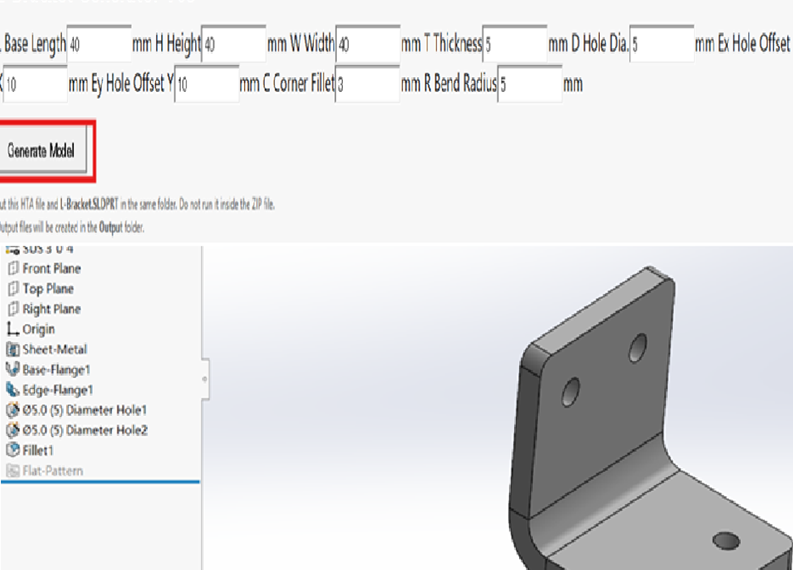
Here is a short demo video of the SolidWorks L-Bracket Generator I built as a simple CAD automation test.
In this example, the user enters key bracket dimensions such as length, height, width, thickness, hole diameter, and hole position. After clicking the generate button, the tool automatically launches SolidWorks, updates the master model, rebuilds the part, and saves the generated file to the output folder.
This is not meant to be a complex product configurator. It is a practical proof of concept showing how repetitive SolidWorks modeling tasks can be converted into a simple parametric automation workflow.
For mechanical engineers, even a small tool like this can help reduce manual dimension editing, avoid repeated setup work, and make CAD workflows more consistent.
You can download the sample SolidWorks L-Bracket Generator here and test the workflow yourself.👇